 Deskmap
Download · Version 0.6.0
Get Deskmap.
Free, open source, no account. Download the app, unzip it, drag it to Applications. The first launch takes two extra clicks because the app is not notarized.
Requirements
What you need.
- macOS
- 13 Ventura or laterOn macOS 15 and 26.0–26.3 desktop moves start off until you choose Try Anyway: they have not been verified there yet. Displays and layouts work on every version.
- Mac
- Apple silicon and Intel
- Price
- FreeSupport the project if you like it, never required.
- License
- MITThe source is on GitHub.
Install
Two ways to get it.
The app, from GitHub.
The same app the Homebrew cask installs, straight from the latest release. Then open it the first time as shown below.
- Download the zip from the latest release.
- Unzip it.
- Drag
Deskmap.appto/Applications.
Two lines in Terminal.
Deskmap has a Homebrew cask in its own tap. It installs the same app; the first launch below still applies. Homebrew 7 and later asks you to trust the tap once.
$ brew trust cnkndmr/tap
$ brew install --cask cnkndmr/tap/deskmap
First launch
Open it the first time.
Deskmap is not notarized by Apple, so macOS blocks the first launch. Three steps, once.
Install
Download the zip from the latest release, unzip it and drag Deskmap.app to /Applications.
Let macOS open it
Open the app once. macOS blocks it. Then go to System Settings › Privacy & Security and click Open Anyway.
Grant Accessibility
In the welcome guide, click Open System Settings and allow. macOS opens Privacy & Security › Accessibility; turn Deskmap on there. The guide notices it by itself.
After every update
macOS asks for the Accessibility permission again after each update. If a window stops moving after you updated, grant it again.
Deskmap has no Dock icon. It lives in the menu bar, and the welcome guide opens on first launch. Why the permission? It is needed to read window titles and to move windows. Nothing else is read: no network, none of your files, no window contents. See Privacy.
Settings
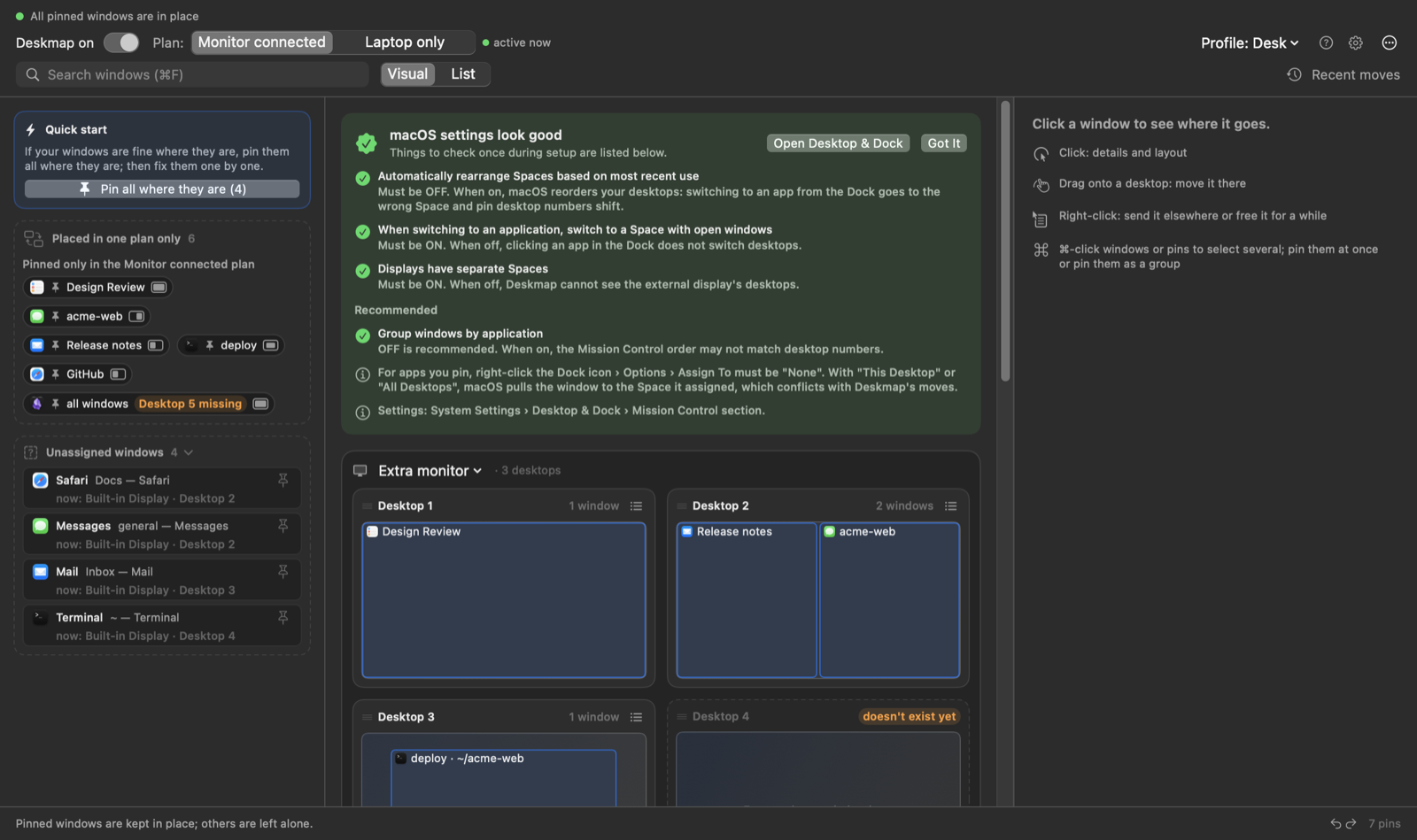
Four macOS settings. Fix them once.
Deskmap checks these live: in the welcome guide, in Settings › macOS Settings, and with an orange card on the map if one goes wrong later. In System Settings › Desktop & Dock:
| Setting | Must be |
|---|---|
| Automatically rearrange Spaces based on most recent use | Off |
| When switching to an application, switch to a Space with open windows | On |
| Displays have separate Spaces | On |
| Group windows by application | Off (recommended) |
One more, per app
macOS won't let any app check this one: for every app you are going to pin, right-click its Dock icon › Options › Assign To → None. If macOS has assigned the app to a desktop itself, it will fight over the window.
Updating and removing
No updater. No leftovers.
Updating
Deskmap has no update check and never contacts a server. To update, download the newer release the same way and replace the app. What changed is listed in the changelog.
Remember that macOS asks for the Accessibility permission again after an update.
Uninstalling
Quit Deskmap (right-click the menu bar icon › Quit) and drag the app to the Trash. With Homebrew: brew uninstall --cask deskmap.
Your pins, profiles and backups stay in ~/Library/Application Support/Deskmap/. Delete that folder too and nothing is left behind.
Moving a window to another desktop uses private macOS functions, and a macOS update can break them. Deskmap then falls back to display and layout only, and tells you.
From source
Build it yourself.
You need the Xcode Command Line Tools (xcode-select --install) with Swift 5.9 or later. Xcode itself is not required.
$ git clone https://github.com/cnkndmr/Deskmap.git Deskmap
$ cd Deskmap
$ make app                  # release build → build/Deskmap.app
$ open build/Deskmap.app    # or: make run
For a permanent install, copy the app to /Applications and turn on Launch at login in Settings › General. That checkbox registers whichever copy is running, so move the app first if you ran it from build/.