 Deskmap
 reference
Every rule, every setting, every failure mode. For the overview and the comparison with other tools see the README; for a ten-minute walkthrough see the user guide (Türkçe).
On this page
- Requirements
- Install
- Accessibility permission
- Language
- Required macOS settings
- Quick start
- How it works
- Pins (rules)
- "This window" keys
- Temporary pins
- Two modes: monitor connected / laptop only
- Desktops
- Profiles
- Undo, redo and change history
- Pausing
- Desktop names (schema 6)
- Where data lives
- Backups
- Automation (URL scheme)
- Command line (deskmap)
- Layout files (deskmap apply)
- Screen change hooks (hooks.json)
- Keyboard shortcuts
- Troubleshooting
- Accessibility stops working after a rebuild
- Windows land on the wrong desktop or flash and disappear
- A pin doesn't take effect
- "Moving windows between desktops is not available on this macOS"
- "App not responding; skipped for now"
- Errors about rules.json
- External display roles swapped
- Reading the log
- Architecture
- Development
- Localization
- Distribution
- Limitations
- License
Requirements#
- macOS 13 Ventura or later.
- To build: Xcode Command Line Tools (
xcode-select --install) with Swift 5.9 or later. Xcode itself is not required. - To run the tests: a Swift 6 toolchain (Xcode 16 or its Command Line Tools), because the tests use Swift Testing.
Install#
git clone https://github.com/cnkndmr/Deskmap.git Deskmap
cd Deskmap
make app                      # release build → build/Deskmap.app
open build/Deskmap.app    # or: make run (builds and opens)
For a permanent install, copy the app to /Applications and turn on Launch at login in the app's footer:
cp -R build/Deskmap.app /Applications/Launch at login registers whichever copy is running. If you run it from build/, the checkbox tooltip shows that path; move the app to /Applications first if you want a stable login item. If macOS wants you to confirm the login item, an orange Approval needed link appears next to the checkbox and opens System Settings › General › Login Items.
Accessibility permission#
Deskmap reads and moves other apps' windows through the Accessibility API, so it needs permission once:
- On first launch the window shows Accessibility permission required. Click Grant Access.
- macOS shows its prompt and opens System Settings › Privacy & Security › Accessibility. Turn on Deskmap.
- The app checks the permission every 2 seconds and starts routing on its own. If it doesn't, quit it (✕ in the footer) and open it again.
The app is ad-hoc signed by default. macOS ties the permission to the code signature, so every rebuild needs the permission granted again; see Troubleshooting.
Only one copy runs at a time: if a second Deskmap starts (for example a build/ copy while the /Applications copy is running), it quits right away, so two routers never fight over the same windows.
Language#
The interface is in English and has a Turkish translation. The app uses the first language in your preferred-language list (System Settings › General › Language & Region) that it supports, so Turkish appears only when Turkish is listed before English (or English isn't listed at all). To force a language for Deskmap alone:
defaults write com.deskmap.app AppleLanguages -array en   # or: tr
defaults delete com.deskmap.app AppleLanguages            # back to the system order
Quit and reopen the app after changing it.
Required macOS settings#
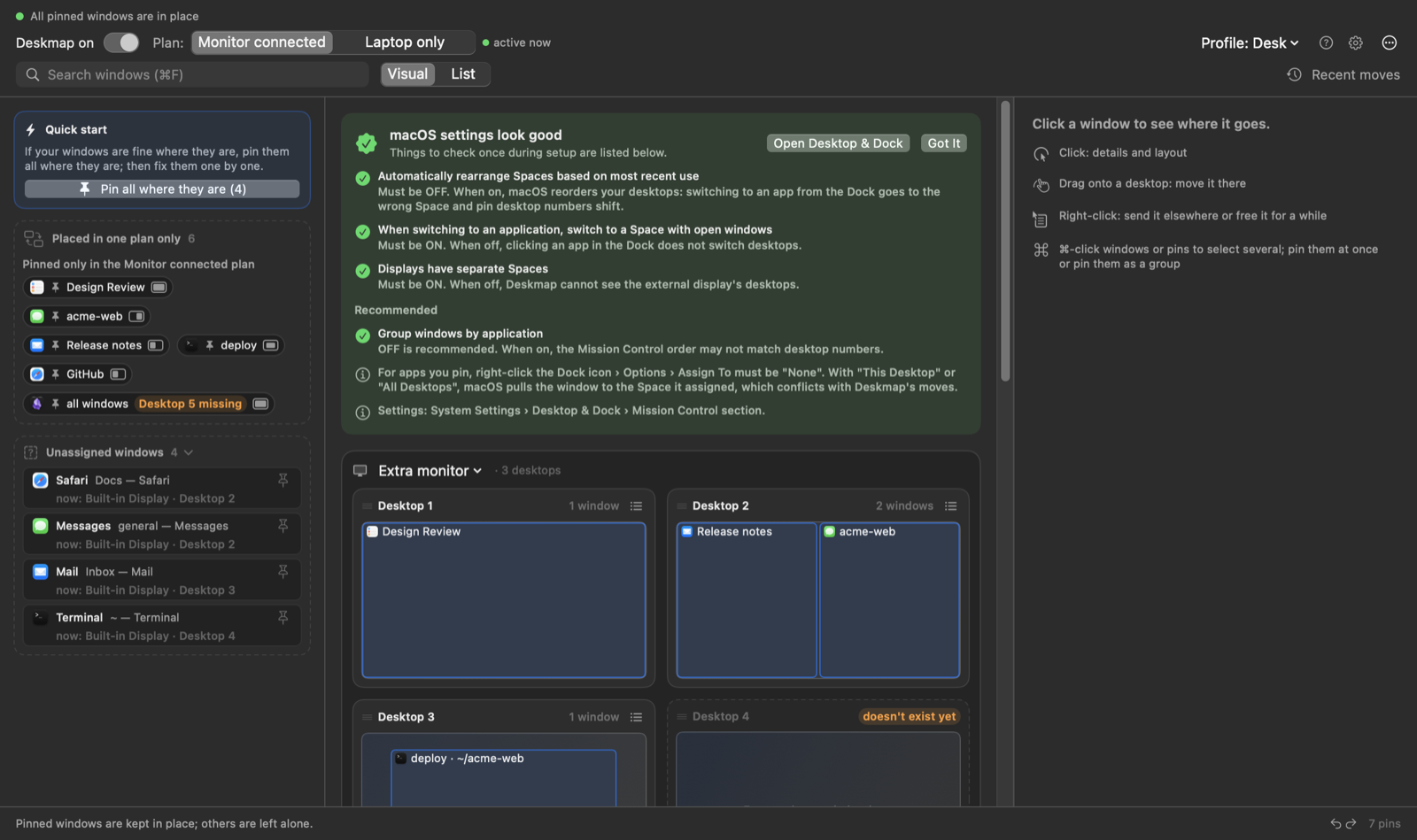
Deskmap checks these settings live and shows an orange macOS settings need fixing card until they are right. The card has an Open Desktop & Dock button.
System Settings › Desktop & Dock › Mission Control:
| Setting | Must be | Why |
|---|---|---|
| Automatically rearrange Spaces based on most recent use | Off | When on, macOS reorders your desktops: switching to an app from the Dock lands on a neighbouring Space, the window flashes and disappears, and pins end up on the wrong desktop numbers. |
| When switching to an application, switch to a Space with open windows | On | When off, clicking an app in the Dock does not switch desktops. |
| Group windows by application | Off (recommended) | When on, the Mission Control order may not match desktop numbers. |
| Displays have separate Spaces | On | When off, Deskmap cannot see the external display's desktops. |
Dock icon › right-click › Options › Assign To → None for every app you pin. With "This Desktop" or "All Desktops", macOS pulls the window to the Space it assigned, which conflicts with Deskmap's moves. This one cannot be checked automatically; the card reminds you, and Got It hides the reminder (the card comes back if one of the live-checked settings changes).
Quick start#
- Click the menu bar icon. The window shows a map: one card per display, one row per desktop, with the windows currently on each desktop.
- On a window row, click the pin button. A panel opens at the bottom.
- Choose which part of the title identifies the window, for example the project name rather than the file name. The panel shows how many open windows match right now. Pick a layout if you want one (the default is the window's current position and size).
- Click Pin (or press ⌘Return). From now on, every window of that app whose title contains that part goes to this desktop, in this layout.
- To pin the window to a different desktop, drag its row or chip onto another desktop row on the map.
- Switch the mode selector at the top (laptop / monitor, ⌘1 / ⌘2) and repeat for the other setup. The two setups are independent.
A Getting Started card with these steps is shown while the active profile has no pins.
How it works#
Pins (rules)#
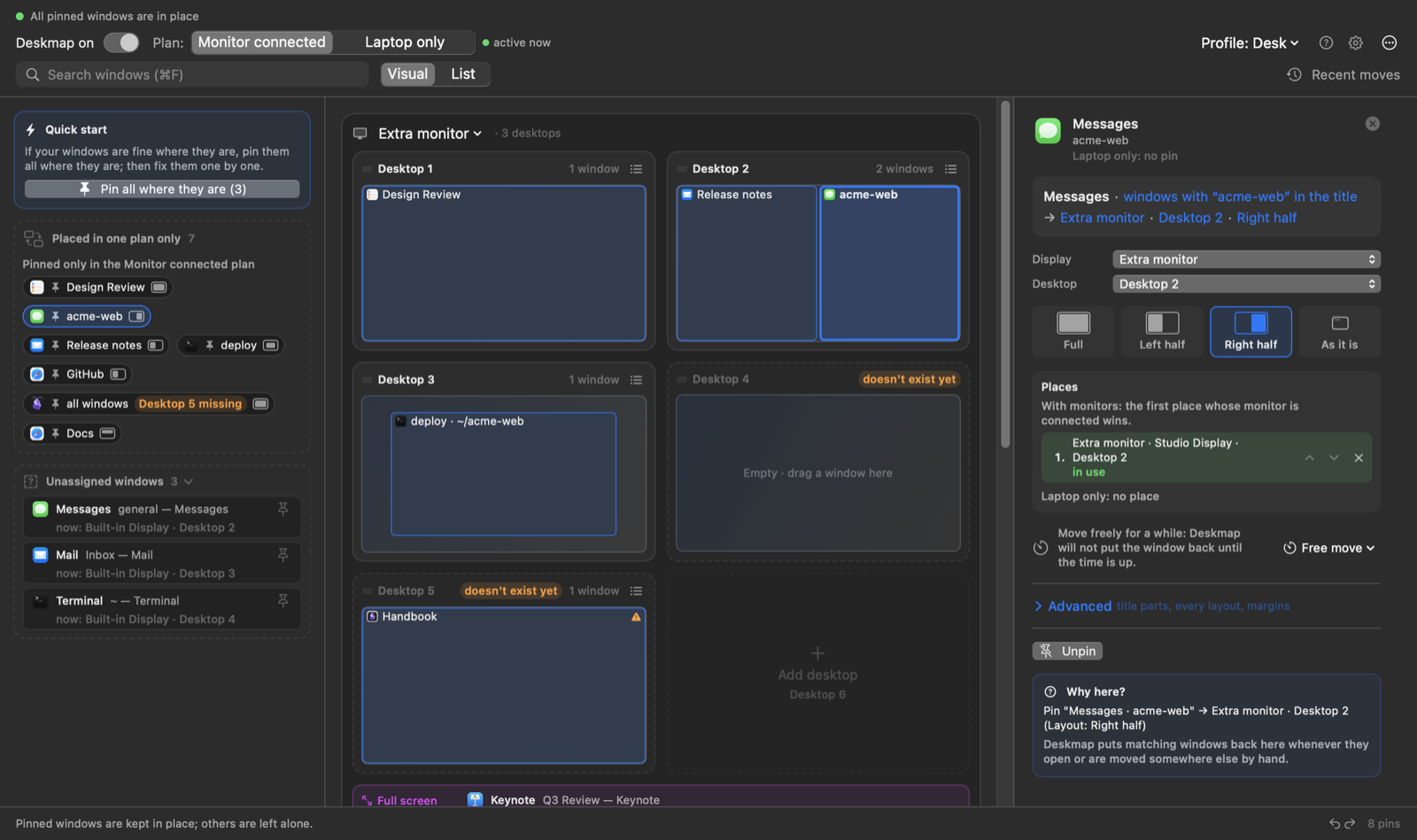
A pin says: windows of this app whose title contains these parts go to this display, this desktop, in this layout.
- App: matched by bundle identifier (or by app name for old rules without one).
- Title parts: the title is split at common separators (
—,–,|,·,•, and-/:with spaces around them; a leading "unsaved" dot is ignored). A window matches when its title contains all selected parts, ignoring case. By default the last part that isn't the app name is selected, because the workspace name is usually at the end. - All windows: pins every window of the app, regardless of title (also used automatically for windows without a title).
- More specific wins: when several pins match a window, the one with more title parts is used. A pin that matches an open window but loses to a more specific pin (or to a temporary pin) is shown as a faded chip; its tooltip says which pin matches first.
- If you pin with the same app and the same parts as an existing pin, the existing pin is updated instead of creating a second one.
What Deskmap enforces:
- Desktop: a pinned window is kept on its desktop. If it ends up elsewhere, it is moved back.
- Layout: applied once per window and target. After that you can resize the window freely; the layout is applied again when you press ⌘R (↻), when pins change, or after a display change. Windows on a desktop you are not looking at get their layout when you switch to that desktop.
- Use current size and position: after resizing or moving a pinned window by hand, click its row and press this button under the layout editor. The window's current position and size (relative to its display's usable area) replace the pin's saved layout; for a fixed-size pin, the size in points and the anchor from the edges the window touches (a window touching no edge keeps the saved anchor). Only the layout changes: the pin keeps its display and desktop, and no new pin is written. Works for temporary pins too.
- Use the other plan's layout: when a pin's two plans put the window in the same place (same display and desktop, e.g. both on the laptop screen; with monitors, the first place of the list) but with different layouts, the panel shows the other plan's layout under the layout tiles with a button (Use the Laptop only plan's layout / Use the Monitor connected plan's layout). It copies that layout into this plan once (⌘Z undoes); the two plans are not linked, so later changes in one stay there. A pin aimed at a desktop name counts as the same place only when both plans use the same name on the same display; one name and one number never do. Two desktop only layouts count as equal, as do two fixed sizes with the same size and anchor.
- Windows of full-screen apps are never touched. Windows without a pin are never moved by the engine.
Click a pinned row or a chip to open its panel: change the layout, Unpin, or change the title parts (this needs a window matching the pin to be open; Apply refuses a selection that would duplicate another pin's app and parts).
"This window" keys#
The pin panel's This window choice writes a normal, saved pin with a stable key, chosen the same way for every app:
- File path — the window's
AXDocument. Stored as"path"on the rule (tokensstays empty); the window must show exactly that file. Used only once Deskmap has seen the app's title change while its document stayed the same (Preview turning a page); never for an app whose document was seen changing in a window (VS Code reports the active editor), nor when another open window shows the same file. Learned per app, kept across restarts. - Stable title part — Deskmap remembers each window's title while it runs; the parts that stayed the same across title changes are the key. If every part changed, there is no key. Safari's tab group is read directly from its toolbar (no group = no key).
- Cleaned title — before any change was seen: page numbers, "Edited", unread counts and similar are dropped.
No key, or a key that also matches another open window: only All windows of the app is offered. deskmap windows shows each window's key (key=file:…, key=title:…, key=-).
Temporary pins#
Multi-select pinning (⌘-click, Pin where they are) falls back to a temporary pin for a window without a usable key. A temporary pin follows the window's ID: it ends when the window closes or its app restarts, and it is not saved to the profile. It survives a Deskmap restart as long as the window is still open. Temporary pins have an orange icon and take precedence over normal pins.
Two modes: monitor connected / laptop only#
Each pin has a separate target for each mode:
- Monitor connected: at least one external display is attached.
- Laptop only: only the built-in display.
The mode selector shows the current mode ("now") by default; you can switch it to edit the other setup. Live windows are listed on the map only for the current mode; the other mode shows its pins as chips. The sidebar's Unassigned windows box is the same in both tabs (open windows are the same in both setups): on the other setup's tab, dropping one on a desktop (or pressing its pin) opens a pin for that setup and does not move the window. When a monitor is plugged in or unplugged, Deskmap waits for the displays to settle (2.5 s, at most 10 s) and then places every pinned window again.
Pins name a display role: builtin, external, external-2, … (on the map: Extra monitor, Monitor 2, …; model names are not shown). Each external monitor keeps the role it first got, remembered by its macOS display UUID: rearranging displays, plugging them in a different order or adding a virtual display on the left no longer moves pins to the other monitor. A monitor Deskmap has not seen takes the lowest free role; displays without a remembered role are numbered left to right (stacked ones by vertical position, the lower first, then by UUID), which is also how roles were given before. Two monitors of the same model are told apart by their UUIDs (macOS derives them from the serial number); the map adds (left) / (right) to identical names.
The title of every external card is a menu that lists the monitors Deskmap has seen (connected ones and remembered ones that are not plugged in, never a new monitor): pick which monitor the card stands for. After a confirmation the two swap, with their pins, desktop names and plans; this works on a faded card too and takes effect when that monitor is plugged in. A monitor that is not plugged in is drawn below the others as a faded, dashed card with its model name, not connected and the desktop count of its plan (else the last count seen, else 1); dashed chips (1 · Safari) show the pins that go there. deskmap screen-role does the same from the terminal. Settings › General › Monitor roles › Forget returns to left-to-right order.
A monitor Deskmap does not remember waits. Once a monitor has been learned, a display that is not remembered in the role it gets (a new office monitor, a virtual display left alone after the monitor is unplugged, a monitor you forgot) is on hold: its card says new monitor · layout on hold, no plan is applied to it and no pin or rule is routed to it, so the Extra monitor layout does not move there by itself. Its card offers Add to the end (its own place after the others, nothing moves) and Replace… (the place and whole layout of a monitor Deskmap knows); its title menu offers Use as Extra monitor, Use as Monitor 2 …; after a confirmation the choice is remembered and the layout is applied at once (deskmap screen-role DISPLAY ROLE does the same). Forget This Monitor in the same menu forgets one monitor (deskmap screen-role DISPLAY --forget). The very first monitor (and every monitor after Settings › Forget) is learned without asking.
Ordered places. In the monitor-connected setup a pin keeps an ordered list of places, at most one per display role: docked in rules.json is the first, dockedNext the rest. On every sweep the first place whose monitor is connected (and not on hold) wins; a desktop-name place counts where that desktop is now. Dropping a pinned window replaces its place on that monitor and keeps the others: on a monitor that is not connected (a faded card) the new place goes first; on a connected monitor it goes just before the first place whose monitor is connected (last if none is), so it never jumps ahead of a monitor that is unplugged right now. Moving Safari inside the Extra monitor while Monitor 2 is away keeps Monitor 2 first. When Monitor 2 is unplugged, a window that was moved there goes back to its earlier place on the Extra monitor. If none of the places is connected, the window goes to the first connected monitor in role order (Extra monitor, Monitor 2, …), on the desktop number of its first place (the last desktop if that monitor has fewer). A pin with only a laptop place is not touched while a monitor is connected, and nothing is moved while the only connected monitor is on hold. Unpin in this setup removes the whole list. Swapping two monitors on the card title menu swaps their layouts with them: no pin is lost. Older versions read only docked and keep working with the first place; saving the file with an older version drops dockedNext. Tables: docs/bug-tables.md §D. scripts/hooktest/multimon.sh checks the macOS side with two virtual displays of the same model (UUIDs, unplug / replug, identical serial numbers). scripts/hooktest/places.sh runs the ordered places end to end with real window moves: two or three virtual displays, a test window, plug / unplug, fallback, role swap and a monitor on hold; it prints PASS / FAIL. It runs a separate build of this repository with an empty, temporary data folder (DESKMAP_DATA_DIR), quits the installed copy first and opens it again at the end (also on errors). Two switches exist only for this test and are off in normal use: DESKMAP_LEARN_TEST_DISPLAYS=1 lets virtual displays ("Deskmap Test Display", "… (1)", "… (2)") learn roles like real monitors, and DESKMAP_TEST_NO_DESKTOP_CHANGES=1 stops the build from creating or removing any desktop (a document without plans would count empty desktops as leftovers). Sign the build with the same identity as the installed copy, otherwise Accessibility does not apply. The CLI follows the same folder (DESKMAP_DATA_DIR) and sends URLs to DESKMAP_APP when set.
Desktops#
- Missing desktops: if a pin targets desktop 5 but the display has only 3, the window goes to the last one and the row shows an orange D5→3 badge (M5→3 in Turkish). Rows for desktops that don't exist yet are drawn dashed. The + Desktop N row at the bottom of each display adds a real desktop: Mission Control opens for a moment and Deskmap presses its + button. In the setup that is not active the desktop is planned and created when that setup becomes active. Right-click a desktop row to remove it.
- Reordering: drag a desktop's label ("Desktop 2") up or down. All pins on that display in this mode (and temporary pins) are renumbered to match, and the windows are moved.
- Unpinned windows: dragging an unpinned row to another desktop moves the window once; nothing is saved. Windows of full-screen apps are never moved and are not listed as unassigned.
- Sidebar: Different between setups lists pins with no target in this mode, pins with a target only in this mode, and pins sent to another display or desktop in the other mode. Dropping a pinned row or chip from the map there removes its target for this mode (a pin with no target in either mode is deleted); dropping a chip back into the box does nothing. Unassigned windows lists open windows with no pin in either mode; the menu bar icon shows their number.
Profiles#
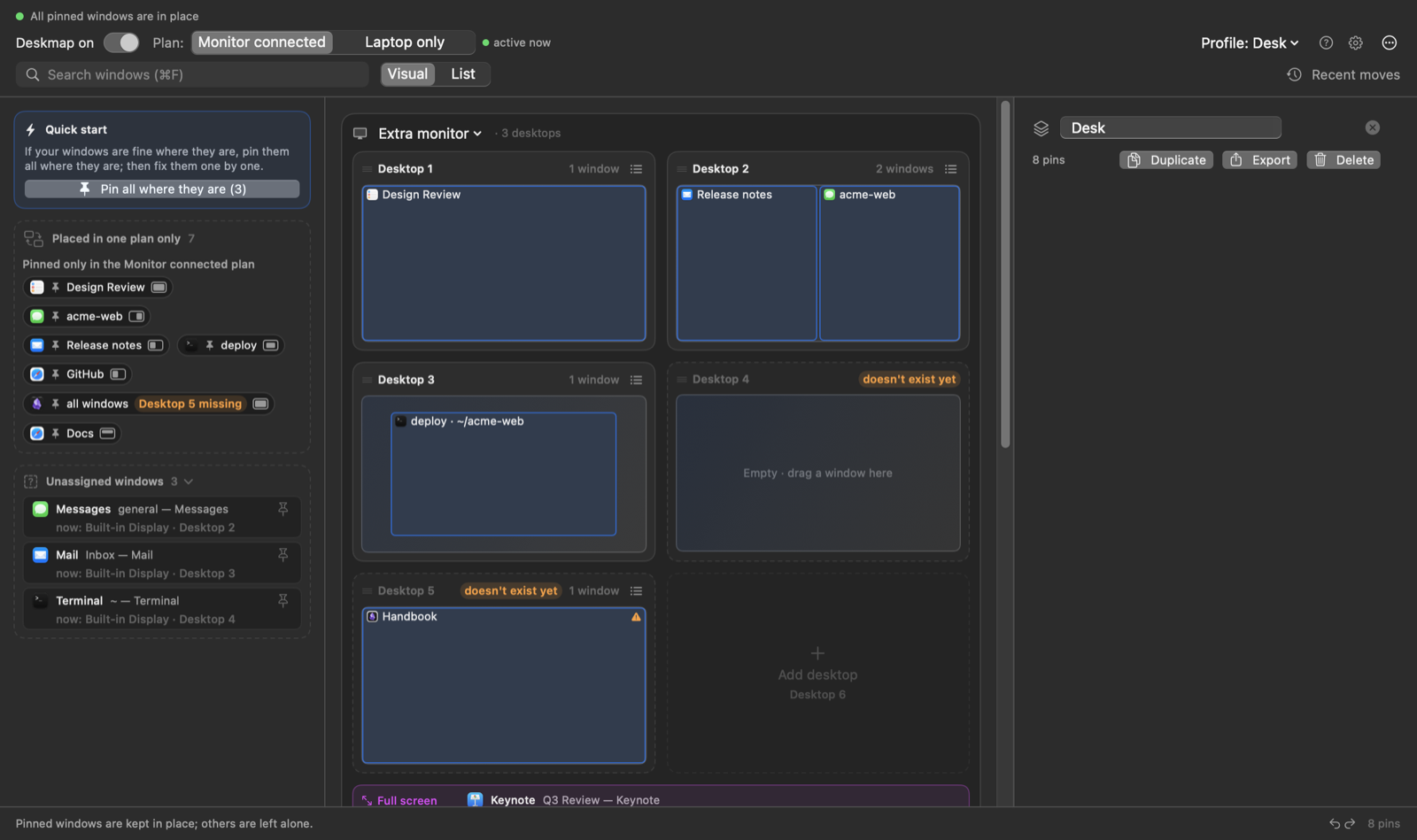
A profile is a named set of pins; the chips under the toolbar list them with their pin count.
- Click a profile to switch to it. Windows are placed again right away.
- Click the active profile to rename, Duplicate, Export or Delete it (the last profile cannot be deleted).
- Desktop names, their per-setup plans and deleted-desktop rows belong to each profile (schema 6, see Desktop names). + starts with none; Duplicate copies them; switching shows the target's names at once, moves windows to match its plan and only creates missing desktops (never deletes one). Export (version 4) carries names, plans and name pins (not the Mac-specific desktop IDs or deleted-desktop rows); imported names are placed by plan position at the next plan application.
- + creates an empty profile. The import button reads a
.deskmap.jsonfile exported earlier; a plainrules.jsonalso works. - Profiles can be switched from Shortcuts, Raycast and others via the URL scheme.
Undo, redo and change history#
There are no confirmation dialogs. Every settings change this session is a step in a history: pins added, moved or removed, layouts, title parts, desktop order, profiles (switch, add, rename, import, delete), backups, and changes that arrive from elsewhere (a URL command, the CLI, Mission Control; these show as Settings changed or a more specific label). The pause switch and newly seen displays are not steps.
- ⌘Z undoes one step, ⇧⌘Z redoes one. The footer keeps two small ↶ ↷ buttons; hover shows the step they would undo or redo, and they fade when there is nothing to do.
- Recent moves › Changes lists the steps, newest first, from Deskmap opened. The current state has ● and NOW; faded rows above it were undone and can be redone. Hover a row and click Return here to put the settings back exactly as they were right after that step (the first row is the state at launch). Returning moves back or forward several steps at once and adds no step of its own.
- Making a new change after undoing drops the undone steps; the footer shows "N redoable steps discarded · Undo" for a few seconds, and Undo brings them back.
- Temporary (session) pin changes can be undone but not redone (marked "cannot be redone").
- The history keeps the last 50 steps and is not saved: it starts empty each time Deskmap opens. The pause switch and known displays keep their current value when you undo.
While the cursor is in a text field, ⌘Z / ⇧⌘Z act on the text.
Pausing#
The switch at the top left pauses routing (the menu bar icon changes to a pause symbol). Windows are still listed, but nothing is moved. Pausing is saved and survives restarts.
Desktop names (schema 6)#
- A name is bound to one desktop (a macOS space ID) and follows it across displays, reordering and plug/unplug. It has no mode, screen or number.
- A desktop dragged to another display in Mission Control is moved back by default (Settings › General › Desktop dragged to another display: Move back / Ask / Leave). macOS cannot move a space between displays without SIP, so Deskmap adds a desktop at the end of the old display, shifts the later contents by one, moves the windows into the old position and removes the dragged desktop if it is empty; the name follows, pins do not change. A card offers Keep it there. Not moved back: changes seen at launch (a card asks), within 15 s of a display change or 60 s of waking, a desktop moved back less than 60 s ago, a monitor waiting for confirmation, or when desktop moves are off (a card says so). Leave keeps the old behaviour: the name follows the desktop to the other display.
- Each profile has a plan per setup (
docked,undocked) and display role: the ordered list of desktops, each a name or empty. The plan length is the number of desktops that role should have. - Plug/unplug applies the new setup's plan: windows of named desktops move with them; unnamed windows that were on a monitor desktop are parked on laptop desktops and returned on replug (by display role, so another monitor works too); missing desktops are created (at most 8 per display per pass); only empty leftovers beyond the plan are removed, each re-checked empty right before removal. Desktops with windows, named desktops and full-screen spaces are never removed or moved. A move that fails keeps the window and its desktop and shows a footer message.
- Deleted-desktop rows come only from a real deletion outside a display change, sleep or launch catch-up.
- A rule can target a name (
nameID) instead of a number; if the name has no desktop yet the window is held, not moved. A profile switch or Copy the Laptop only plan here moves windows to match the plan but removes nothing. - Removing a desktop that has windows asks for confirmation in the app.
- Upgrade from schema 5: runs once at the first settled sweep. The old
rules.jsonanddesktop-spaces.jsonare copied toBackups/pre-migration/(never pruned; no backup, no upgrade). Names are matched to desktops by where their pinned windows are. A status card lists the result and offers Remove N empty desktops and Undo upgrade.
deskmap desktops prints one line per name with its live place and its planned place in each setup (external/2 Nova Ek plan docked: external/2, undocked: builtin/7; (no desktop yet) for a name without a desktop), then one line per plan (plan docked/external: Orion | Nova Ek | · | Lumen, · = unnamed desktop), then deleted-desktop rows. --json prints desktopNames, names and plans.
Where data lives#
| File | Contents |
|---|---|
~/Library/Application Support/Deskmap/rules.json |
Pins, profiles, known displays, the on/off switch. Written 0.4 s after a change and on quit. |
~/Library/Application Support/Deskmap/rules.json.bak |
Copy of an unreadable or partly unreadable rules.json, made before it is overwritten. |
~/Library/Application Support/Deskmap/session-pins.json |
Temporary pins (window ID + process ID). |
~/Library/Application Support/Deskmap/desktop-state.json |
Desktops per display, their windows (IDs only, no titles), parked windows and the transition in progress. Replaces desktop-spaces.json; not backed up. |
~/Library/Application Support/Deskmap/Backups/ |
Automatic backups (see Backups). |
<name>.deskmap.json |
An exported profile. |
Set DESKMAP_DATA_DIR to use another folder instead of ~/Library/Application Support/Deskmap/ (to try an upgrade on a copy).
See docs/architecture.md for the formats.
Backups#
The app backs up rules.json (all profiles, pins, desktop names and plans), plus hooks.json when it exists, by itself: at launch, every five minutes while running, after wake and when the clock, time zone or day changes. No script or launch agent is involved.
| Folder | One file per | Kept |
|---|---|---|
Backups/hourly/hourly-YYYYMMDDTHHZ.json |
hour (UTC, so daylight-saving changes don't collide) | last 24 hours |
Backups/daily/daily-YYYY-MM-DD.json |
local day; holds that day's latest state | last 7 days |
Backups/weekly/weekly-YYYY-Www.json |
ISO week; holds that week's latest state | forever |
Backups/pre-restore/pre-restore-…Z.json |
restore; the state just before it | last 10 |
Backups/pre-migration/rules-v5-…Z.json |
the schema 5 → 6 upgrade (with a desktop-spaces-…Z.json copy) |
forever |
- A file is only rewritten when its content changed; each write goes to a temporary file that is renamed into place.
- A
rules.jsonthat can't be read, has skipped rules or belongs to a newer Deskmap is never backed up; an empty document (no pins at all) never replaces a backup that has pins. - Pruning only removes files whose names it recognizes, keeps the newest file of every tier, and never touches
weekly/. - Restore: Settings › Backups (or Backups… in the profile panel) → Restore → Replace current profiles. The current state goes to
pre-restore/first, the document is replaced (the on/off switch and known displays stay as they are),hooks.jsonreturns to the backed-up version and windows are placed again. The footer offers Backup restored · Undo.desktop-state.jsonis not restored; its desktop IDs belong to the running session. A schema 5 backup is upgraded as it is restored.
Automation (URL scheme)#
Deskmap handles deskmap:// URLs, so Shortcuts, Raycast, Hammerspoon, Keyboard Maestro or a terminal can control it. If the app isn't running, macOS starts it first.
| URL | Effect |
|---|---|
deskmap://reapply |
Place pinned windows now (same as ↻ / ⌘R) |
deskmap://pause |
Pause routing |
deskmap://resume |
Resume routing |
deskmap://toggle |
Pause / resume |
deskmap://profile/<name> |
Switch to the named profile (exact match first, then case-insensitive) |
deskmap://profile?name=<name> |
Same; use this for names containing / |
deskmap://next-profile |
Switch to the next profile, wrapping around (next and nextprofile also work) |
deskmap://add-desktop/<screen> |
Add a desktop to a connected display (builtin, external, …); opens Mission Control briefly and presses its + |
deskmap://remove-desktop/<screen>/<n> |
Remove desktop n of a connected display through Mission Control; pins shift like the map does |
deskmap://reload |
Re-read rules.json from disk |
deskmap://status |
Write status.json now |
deskmap://pin/<window>/<screen>/<n>[?layout=desktop-only] |
Temporary pin: keep window id window on desktop n of screen until it closes; desktop-only leaves its position and size alone |
deskmap://pin/<window>?name=<desktop name>[&layout=desktop-only] |
Temporary pin to a named desktop of the active profile; it follows that desktop. Unknown names do nothing |
deskmap://unpin/<window> |
Remove the temporary pin |
deskmap://move/<window>/<screen>/<n> |
Move the window once |
deskmap://rule-add?json=<rule> |
Add a rule (percent-encoded rule JSON, same shape as in rules.json) |
deskmap://rule-remove/<id> |
Remove a rule |
deskmap://profile-rename/<name>?name=<new> |
Rename a profile |
deskmap://profile-export?path=<absolute path>[&name=<profile>] |
Export a profile (default: active) as .deskmap.json |
deskmap://desktop-move/<screen>/<n>/<m>[?mode=docked|undocked] |
Move desktop n to position m, like dragging its label: pins follow; in the live mode windows move too |
deskmap://rule-save-layout/<rule id>[?window=<id>] |
Use a matching window's current size and position as the rule's layout (live mode) |
deskmap://rule-copy-layout/<rule id>?from=docked|undocked |
Copy that plan's layout once into the rule's other plan (both must be the same display and desktop); an error if they are not or one plan has no target, nothing if the layouts are already equal |
deskmap://profile-set?json=<profile>&activate=1 |
Create or update a profile by name |
deskmap://plan-desktops/<screen>/<count>[?mode=] |
Make a display have count desktops |
deskmap://desktop-name/<screen>/<n>?name=<name> |
Name a desktop (empty name removes it). The name belongs to that desktop: it follows it when it is reordered or moved, also to the other display, and in plug/unplug. A name already used in the profile is refused |
deskmap://quit |
Quit Deskmap (the way scripts and tests close it; never kill the process) |
deskmap://screen-role/<monitor>/<role> |
Give a connected monitor (its current role or the start of its UUID) an external role; it keeps it from now on. A monitor already in that role swaps with it. Roles up to the number of connected monitors |
deskmap://screen-role-forget |
Forget remembered monitor roles (left-to-right order again) |
deskmap://screen-role-forget/<monitor> |
Forget one connected monitor: its role waits on hold, its layout is not applied |
deskmap://backup-now |
Run the automatic backup now |
deskmap://backup-restore/<id> |
Restore a backup by id (e.g. daily-2026-10-12); see Backups |
deskmap://group-add?name=<name>&rules=<id,id> |
Make a pin group of the active profile from rule ids (no name: Group N); pins in another group move to the new one |
deskmap://group-rename/<group>?name=<name> |
Rename a pin group; <group> is its id or its exact name (case-insensitive). An empty name is refused |
deskmap://group-remove/<group> |
Ungroup: the group goes, its pins stay |
deskmap://group-set/<group>?add=<ids>&remove=<ids> |
Add and/or remove members in one undo step; removing a pin that is not in the group is an error and nothing changes |
Any command accepts ?req=<id>: after handling it Deskmap writes status.json with "request": "<id>", so a script can wait for the command and read lastError.
Command names are case-insensitive, and deskmap:reapply (without //) works too. Spaces and non-ASCII characters must be percent-encoded: Office Desk → deskmap://profile/Office%20Desk. An unknown command or profile shows a red error in the app's footer; there is no other notification.
open "deskmap://profile/Office"
open "deskmap://reapply"
Command line (deskmap)#
scripts/deskmap wraps the URLs and status.json (link it into your PATH). It waits for each command and exits non-zero with Deskmap's error message.
deskmap status                      # mode, profile, screens, counts
deskmap windows --app Code          # id, app, screen/desktop, title
deskmap move Safari external 2      # window id or a unique app/title fragment
deskmap pin 12345 builtin 1 && deskmap unpin 12345
deskmap free Safari 15m             # pinned window moves freely: 15m, 2h, lock (until the screen locks), end
deskmap screens | rules [--json]    # connected displays | the active profile's rules
deskmap hooks                       # commands run when a window changes screen (hooks.json)
deskmap rule add --app cmux --screen external --undocked-screen builtin --layout 0,0,0.5,1
deskmap rule rm <id>
deskmap pause | resume | reload | profile Office
deskmap profile-rename Office "Office desk"
deskmap export ~/office.deskmap.json [--profile Office]
deskmap desktop-move external 1 3          # desktop 1 becomes desktop 3
deskmap desktops [--json]                  # names with their live place, the plan of each setup
deskmap name external 2 "Nova Ek"          # name the desktop that is desktop 2 now
deskmap screens                            # roles, UUID start, "role kept" / "role by position"
deskmap screen-role LG 2                   # this monitor is Monitor 2 from now on (swaps)
deskmap screen-role --forget               # roles follow left-to-right order again
deskmap screen-role Pebble --forget         # forget this monitor only: its role waits
deskmap backups [--json]                   # automatic backups, newest first
deskmap backup-now
deskmap backup-restore daily-2026-10-12
deskmap save-layout Safari [--window 12345] # keep the size you just dragged
deskmap rule copy-layout Safari --from docked # laptop plan takes the monitor plan's layout (same place only)
deskmap group list [--json]                # pin groups, their pins and places ("(empty)" if none is left)
deskmap group create "Nova drafts" Orion_report Vega_notes   # rule ids or unique fragments; prints the id
deskmap group rename "Nova drafts" Drafts  # GROUP: id, name or a unique part of a name
deskmap group add Drafts Nova_Conf
deskmap group remove Drafts Vega_notes
deskmap group rm Drafts                    # ungroup; the pins stay
deskmap rules marks a grouped rule with [group: name]. status.json lists the active profile's groups in pinGroups (id, name, rules: member ids, empty groups included); each member rule carries groupID.
Layout files (deskmap apply)#
Describe a setup in one file and let Deskmap build it (see examples/layout.yaml). By default the active profile is edited: rules for the windows in the file are added or updated (same app + title fragments keeps the rule's id), every other rule stays. Add profile: <name> to edit or create another profile (apply switches to it), and replace: true to make the file the profile's whole rule list.
desktops:
  docked:   {external: 3, builtin: 2}
  undocked: {builtin: 4}
windows:
  - app: Code
    title: Orion-Makale        # title fragment(s), optional
    docked: external/1 left-half   # screen/desktop layout
    undocked: builtin/1 full
  - app: Safari
    docked: [external-2/1, external/2]   # ordered: first connected wins
  - app: cmux
    docked: {screen: external, desktop: 2, layout: center-two-thirds}
    launch: true                   # open it if no window is open
  - app: Microsoft Teams
    place: builtin/2 center        # same in both modes
deskmap apply desk.yaml --dry-run # what would change (rules, desktops, launches)
deskmap apply desk.yaml # edit the active profile (or the named one), report
deskmap check desk.yaml # is everything where the file says? (no changes)
deskmap apply --undo # back to the previous profile and rules
deskmap layouts # layout names: left-half, top-right, center-third…
deskmap apply desk.yaml --remove # remove the file's rules from the profile
deskmap dump --docked external/2 -o desk.yaml # write existing rules as a layout fileThe report lists every open window the file's rules pick (same choice as Deskmap: temporary pin first, then the rule with the most title fragments) and marks it ✓ or ✗ with the reason (wrong desktop, size off, full screen). apply exits 2 when something is not in place. Only one profile is written; other profiles are never touched. --undo does not revert desktop counts. launch may be true, a file/folder path to open with the app, or a shell command. YAML needs PyYAML; .json files work without it.
status.json (next to rules.json) holds the live state: screens, windows with their placement and temporary pin, rules, active profile, whether routing is paused, and the last error. Besides desktopNames (display role → number → name, the current layout) it has names (id, name, space, screen, desktop: where the desktop is now, planned: setup → screen/n) and plans (setup → display role → list of name ids, "" for an unnamed desktop). Each window's place says which of its pin's places was used in the last sweep: "1", "2" … (ordered places), "fallback" (none connected, role order) or "untouched" (pinned, but left alone); deskmap windows shows it as place=. desktopMoves says whether desktop moves are on: on, held (unverified macOS, off until Try Anyway), reduced (reduced mode) or unavailable; deskmap status prints a line when they are off.
Screen change hooks (hooks.json)#
When a window ends up on another display, Deskmap runs matching commands from hooks.json (next to rules.json, re-read when it changes):
[{"app": "cmux", "from": "*", "to": "builtin", "run": "~/bin/cmux-layout grid"}]app is a bundle id or app name, from/to a screen role (builtin, external, …) or display name; * or a missing field matches anything. The command runs through /bin/sh -c in the background (stopped after 30 s) with DESKMAP_APP, DESKMAP_BUNDLE_ID, DESKMAP_PID, DESKMAP_WINDOW_ID, DESKMAP_FROM, DESKMAP_TO (and _NAME variants) and DESKMAP_CAUSE: move (dragged or moved by a rule) or display (a display was connected or removed and macOS moved the window). While the mouse button is down the hook waits; dropping the window back where it started runs nothing. scripts/hooktest/run.sh tests this end to end with a virtual display.
Shortcuts: add an Open URLs action with
deskmap://profile/Home, then attach a keyboard shortcut or a Focus automation.Raycast: create a Quicklink such as
deskmap://toggle.Hammerspoon:
hs.hotkey.bind({"cmd", "alt"}, "1", function()
  hs.urlevent.openURL("deskmap://profile/Office")
end)
Keyboard shortcuts#
These work while the Deskmap window is open and focused.
| Keys | Action |
|---|---|
| ⌘R | Place pinned windows now |
| ⌘1 / ⌘2 | Show the Monitor connected / Laptop only setup |
| ⌘Z | Undo the last action (while the "· Undo" link is visible) |
| ⌘Return | Confirm the pin panel (Pin) or pin the ⌘-clicked windows |
| Esc | Close the open panel, or clear the ⌘-click selection (while typing in the search or a desktop name field, Esc acts on the field first) |
Troubleshooting#
Accessibility stops working after a rebuild#
Symptoms: the permission card keeps coming back, or Deskmap looks enabled in System Settings but nothing moves. Each build is ad-hoc signed with a new signature, and macOS keeps the permission for the old one.
- Quit Deskmap.
- In System Settings › Privacy & Security › Accessibility, select Deskmap and remove it with − (turning it off and on again is often not enough). Alternatively, from a terminal:
tccutil reset Accessibility com.deskmap.app. - Open the new build and grant the permission again.
Signing with a stable identity (SIGN_IDENTITY=... make app, see Distribution) avoids this.
Windows land on the wrong desktop or flash and disappear#
Check the macOS settings card: "Automatically rearrange Spaces based on most recent use" must be off, and the app's Dock Assign To must be None. See Required macOS settings.
A pin doesn't take effect#
- Faded chip: another, more specific pin (or a temporary pin) matches the window first; hover over the chip to see which one.
- The pin's display isn't connected in the current mode, or the pin has no target in this mode (it's in the sidebar under Different between setups).
- D5→3 badge: the target desktop doesn't exist; add desktops in Mission Control.
- The window belongs to a full-screen app.
- Routing is paused (switch at the top left, pause icon in the menu bar).
"Moving windows between desktops is not available on this macOS"#
The private SkyLight functions for moving windows between Spaces were not found on this macOS version. Windows are still placed on the right display and in the right layout, but not moved between desktops.
"App not responding; skipped for now"#
An app did not answer Accessibility requests (it is frozen or stopped in a debugger). Deskmap skips it for 2 s, doubling up to 30 s, so one app can't stall the others. It is picked up again automatically once it responds.
Errors about rules.json#
- "N rules could not be read": broken entries were skipped; the original file was saved as
rules.json.bakfirst. - "rules.json belongs to a newer version of Deskmap": a newer version wrote this file. The older version reads it but won't overwrite it; changes are not saved.
External display roles swapped#
Since remembered roles, a monitor keeps its role. If the roles are the wrong way round (for example the first time two monitors were seen together, when roles still come from left-to-right order), open the map and pick the right monitor in the card title menu, or run deskmap screen-role <monitor> 1. Settings › General › Monitor roles › Forget starts over.
Reading the log#
The engine logs sparingly (moves, give-ups, unresponsive apps, display changes, sleep/wake) to the unified log. Window titles are redacted.
log stream --predicate 'subsystem == "com.deskmap.app"' --level infoCategories: routing, skylight, ax, screens. At launch the skylight category reports whether SkyLight is available and which desktop move method this macOS uses.
Architecture#
app/Sources/Deskmap/
├── DeskmapApp.swift      App entry: MenuBarExtra, AppModel, URL delegate, single instance
├── Localization.swift        L(): English keys, Turkish table in app/Resources/tr.lproj
├── Models/
│   ├── Rule.swift            Rule (pin), Destination, WindowLayout, Mode, title splitting
│   ├── Store.swift           Document (rules.json, pure operations), Profile, Store (publishes, saves)
│   └── UndoBuffer.swift      One-level undo
├── Services/
│   ├── Router.swift          The engine: sweeps, moves, layouts, temporary pins
│   ├── Routing.swift         Pure target selection and retry accounting
│   ├── Accessibility.swift   Window list, titles, frames (AX API), unresponsive-app backoff
│   ├── SkyLight.swift        Reading and moving Spaces (private SkyLight calls)
│   ├── ScreenService.swift   Connected displays, roles, settle delay
│   ├── WindowEvents.swift    AX observers and workspace notifications that trigger sweeps
│   ├── URLCommands.swift     deskmap:// parsing and execution
│   ├── MacSettings.swift     Live check of the required macOS settings
│   └── Log.swift             os.Logger categories
└── Views/ Map, window rows, chips, pin/profile panels, status cardsThe Router sweeps every 2 seconds and right after window events (new window, title change, focus change, desktop switch). A sweep runs on a background queue: it reads the displays' desktops (SkyLight), the window server list and each app's windows (Accessibility), picks each window's target with Routing.select (the same function the UI uses), then applies the layout and moves the window to its desktop. The results go back to the main actor, where SwiftUI shows them.
There is no public API for moving a window to another Space. SkyLight.swift resolves the private calls also used by Hammerspoon and yabai at runtime with dlsym (SLSMoveWindowsToManagedSpace, SLSSpaceSetCompatID + SLSSetWindowListWorkspace, and SLSBridgedMoveWindowsToManagedSpaceOperation on macOS 26.4+) and picks the one that fits the macOS version. If a symbol is missing, the app doesn't crash: it skips the desktop move and still places the window on the right display and in the right layout.
More detail (sweep steps, retry limits, data formats, localization): docs/architecture.md.
Development#
make check              # debug build
make test               # unit tests (Swift Testing)
make cli-test           # unit tests of the deskmap CLI (Python, no running app needed)
make concurrency-check  # build with -strict-concurrency=complete and list warnings (report only)
make app                # release build + .app bundle in build/
make run                # make app, then open it
make dist               # distributable package (see below)
make clean              # delete build/ and app/.build/
The tests (app/Tests/DeskmapTests, about 600 tests; make test prints the exact count) cover pure logic only: rule matching (including Turkish İ/ı case rules) and title splitting, layouts and coordinates, rules.json schema migrations, document operations on pins and profiles, import/export, target selection, retry and backoff helpers, undo validity, map logic, and localization consistency. They never touch real windows; tests that write files (backups, migrations) use a temporary folder.
make cli-test (scripts/clitest) covers the CLI's own logic the same way: layout and placement parsing, layout files → rules, merging and diffs, rule matching, the check report and the "can be completely covered" warning. The commands that talk to the app are tested end to end by scripts/hooktest/cli.sh, which needs Deskmap running.
Enable the pre-commit hook to build and test before every commit that touches Swift files:
git config core.hooksPath .githooksCI (.github/workflows/ci.yml) builds, tests and packages the app on every push to main and on pull requests. The version number comes from the VERSION file.
scripts/build-and-run.command (double-click in Finder) quits the running Deskmap, builds and opens the new copy, and writes the output to build/last-build.log.
Localization#
User-facing text goes through L("English text") or L("Format %@ with %ld", value, count). The English string is the key; the Turkish translation lives in app/Resources/tr.lproj/Localizable.strings. LocalizationTests fails if a key has no Turkish entry, if a Turkish entry is unused, or if format specifiers don't match. See docs/architecture.md.
Distribution#
make dist builds a universal (arm64 + x86_64) Deskmap.app and packs it as build/dist/Deskmap-<version>.zip (FORMAT=dmg or FORMAT=both for a DMG; VERSION=0.3.1 overrides the version). The default signature is ad-hoc: recipients must open the app the first time with right-click › Open, or run xattr -dr com.apple.quarantine /Applications/Deskmap.app. To distribute without Gatekeeper warnings, use a Developer ID and notarize:
xcrun notarytool store-credentials notary --apple-id ... --team-id ... --password <app-specific>
SIGN_IDENTITY="Developer ID Application: Name (TEAMID)" NOTARY_PROFILE=notary make dist
scripts/make-dist.command runs make dist from Finder.
Limitations#
- Private APIs. Moving windows between Spaces and finding windows on other desktops rely on private SkyLight and Accessibility functions. A macOS update can break them. Every desktop move is checked on the next scan; if moves keep having no effect, Deskmap switches to a reduced mode (display and layout only, desktop moves off) and shows a card with a Try Again button.
- Desktop moves start off where they are unverified. On macOS 15.x and macOS 26.0–26.3 desktop moves have not been verified, so they are off from the start and a card says so; display and layout still apply. Try Anyway turns them on (remembered); if they then keep having no effect, the reduced mode above takes over.
- Unknown state means hands off. If macOS doesn't say which desktop a window is on, the window is only listed: it is neither moved nor resized.
- Desktops are added through Mission Control. macOS has no public way to create a desktop, so Deskmap opens Mission Control briefly and presses its + button. Pins beyond the last desktop go to the last one.
- Titles must identify the window. Apps that don't show a workspace or document name in the title can only be pinned app-wide or with temporary pins.
- Full-screen windows are left alone.
- Two setups only: monitor connected / laptop only. With one or several external monitors the setup is the same; a pin's ordered places decide where it goes for each set of connected monitors (one place per monitor, so the same monitor cannot use a different desktop depending on which other monitors are connected).
- Not instant. Placement happens on window events. A light check every 5 seconds catches what events miss (a full scan only when something changed, plus one every two minutes); title changes are grouped for a second and only count for apps with title-based pins. Apps that resize slowly get a few retries.
- One-level undo, visible for 10 seconds.
- Ad-hoc signing by default, so the Accessibility permission must be granted again after each rebuild.
- Languages: English and Turkish.
License#
MIT; see LICENSE.